Inflyu changes the aspect ratio of a photo three ways: Fill with AI extends the background, Crop keeps the part you choose, Blur fill sets the whole photo over a blurred copy of itself. Try one free Fill with AI without signing up; Crop, Blur fill and custom sizes are in the app after sign-up.
Change the Aspect Ratio of Any Photo
Pick a size, then fill the new edges with AI, crop, or set the photo over a blurred copy of itself. Crop, Blur fill and custom sizes are in the app. One free guest try of Fill with AI, no card required.
Try It Free (1 Free Transformation)
How It Works in 4 Steps
Upload the photo
Choose the photo whose shape you want to change.
Pick a size
Choose a ratio such as 9:16, 4:5, 1:1 or 16:9, and drag where your photo sits in the new frame. In the app you can also type a custom width and height.
Pick how the new frame is filled
Fill with AI draws the missing edges. In the app, Crop keeps the part you choose and Blur fill sets the photo over a blurred copy of itself.
Download the result
Preview the new photo and save the image.
Explore More AI Image Tools
Transform your photos with our full suite of AI editing tools
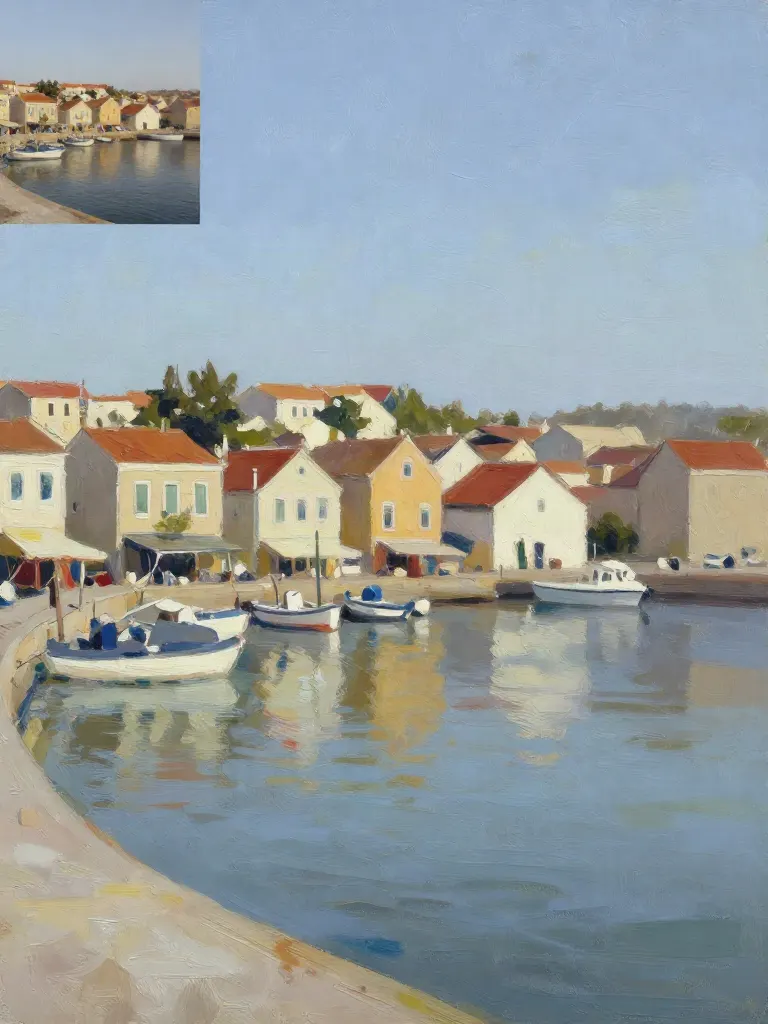
Copy art style (Style transfer)
Upload a photo and a style picture, get your photo repainted in that style.
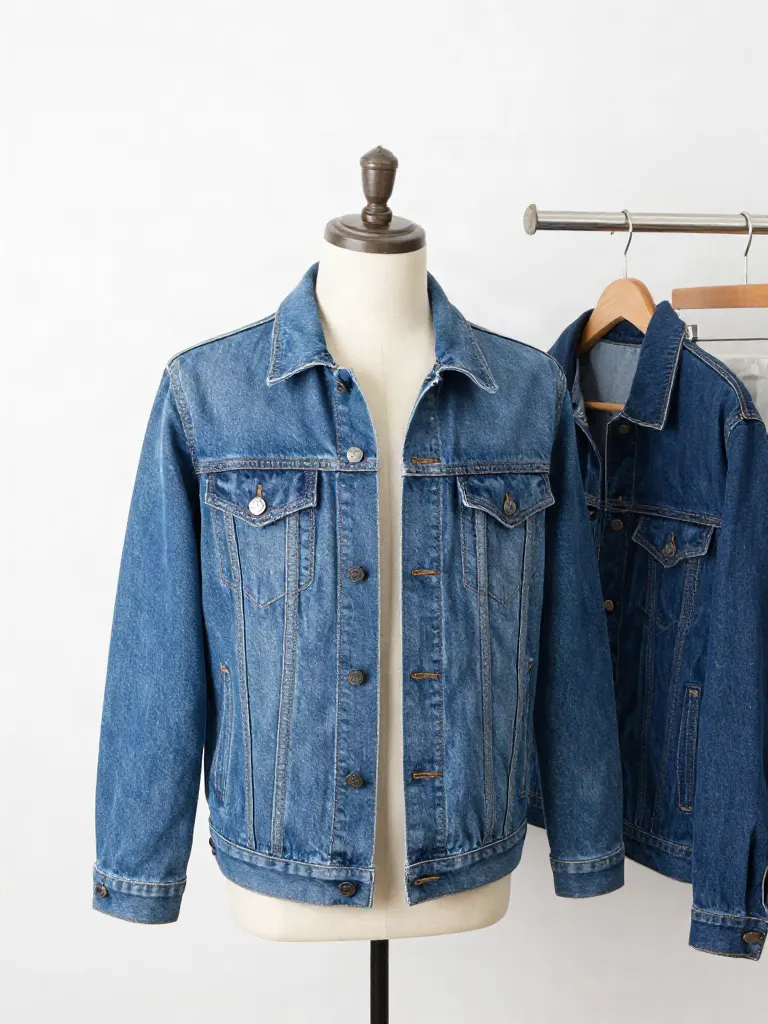
Try on clothes (Try-on)
Upload a person, add a garment photo or describe one, get them wearing it.
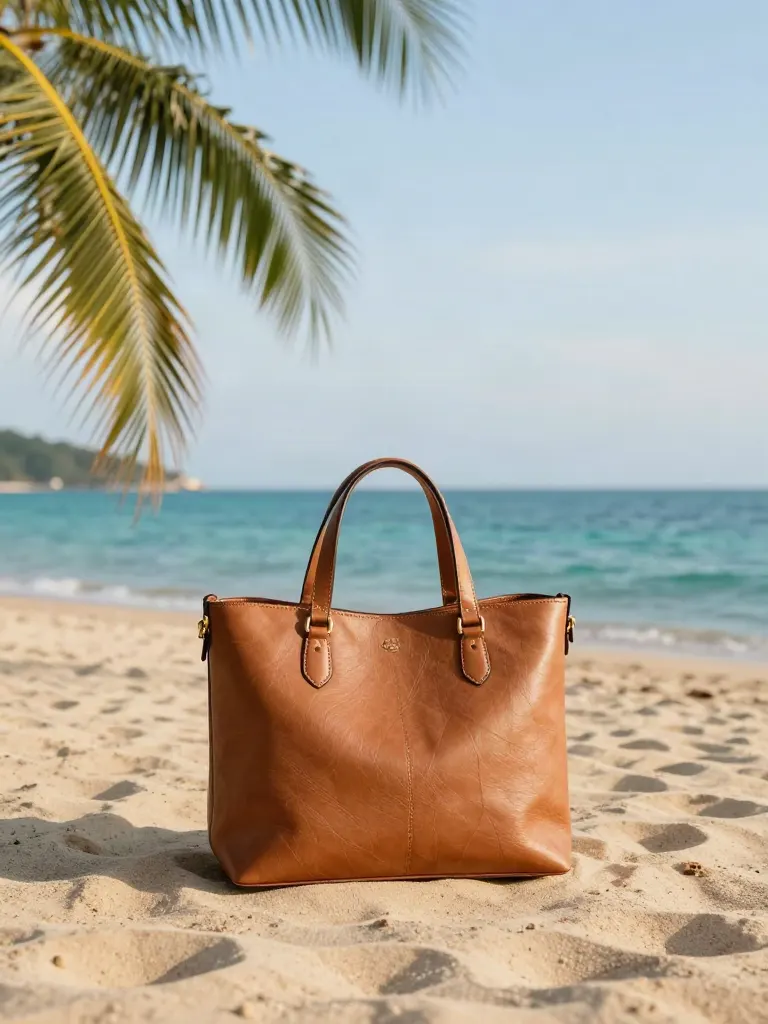
Change background
Upload a photo, get the background removed or swapped for a scene.
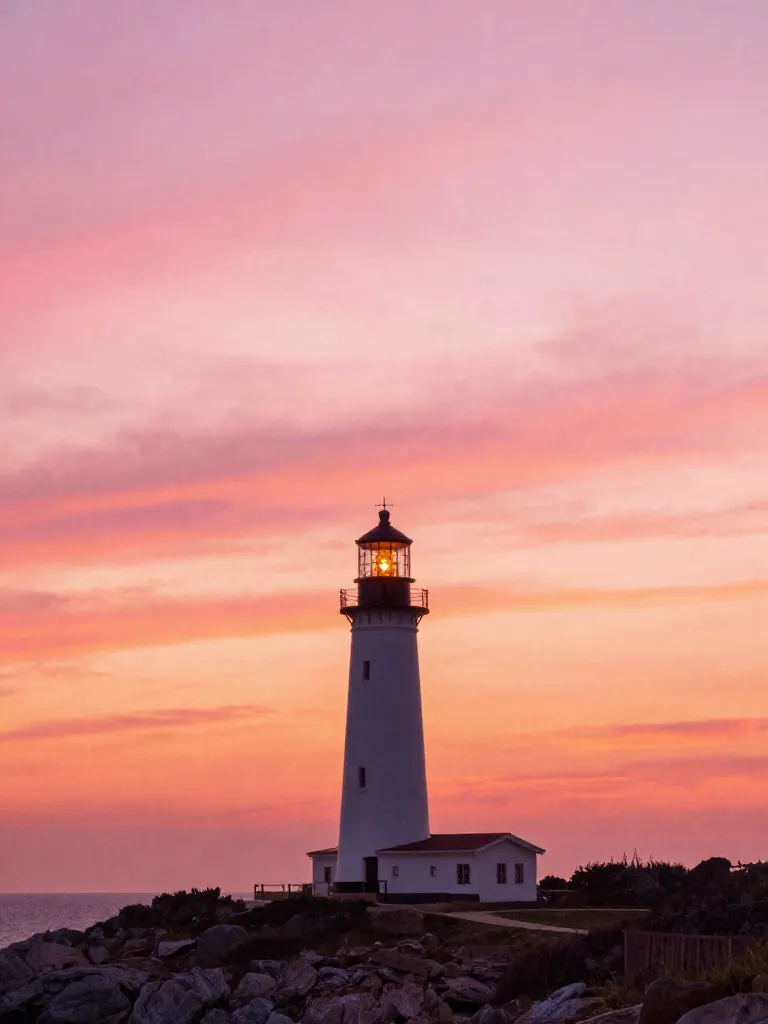
AI filters
Pick an art style, get your photo repainted in it.
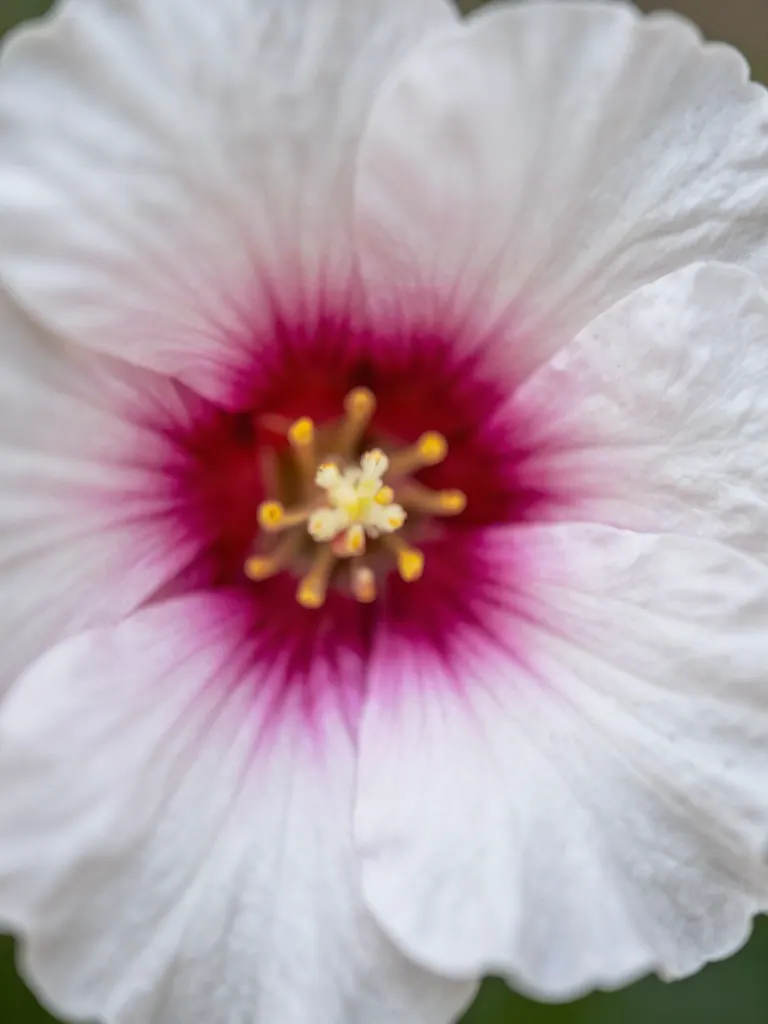
Sharper photo (Upscale)
Upload a blurry photo, get a sharper, cleaner one.
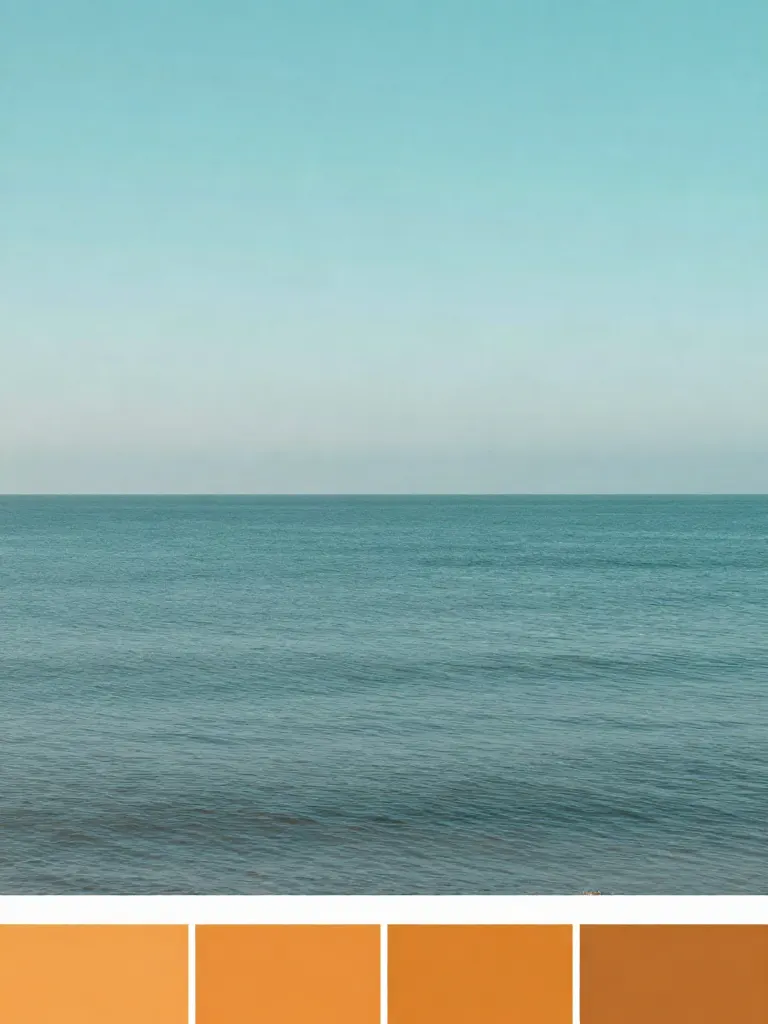
Copy photo colors (Color grade)
Upload a photo and a color reference, get the same color mood.
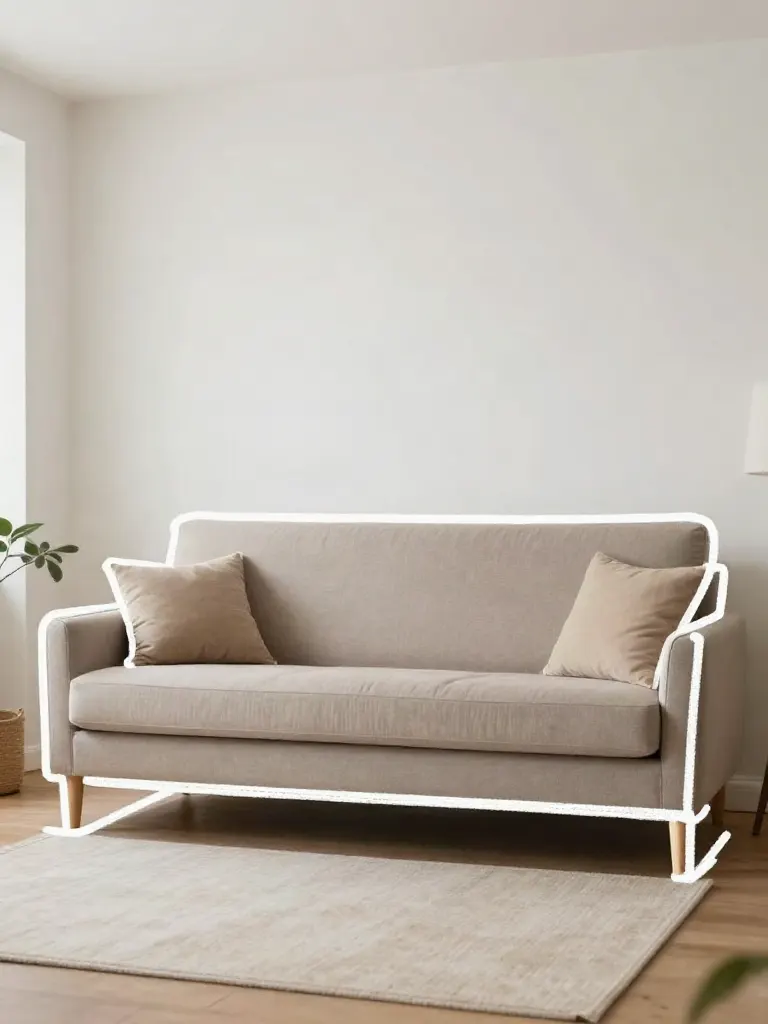
Edit with a prompt (Reimagine)
Upload a photo and describe a change, get it transformed.
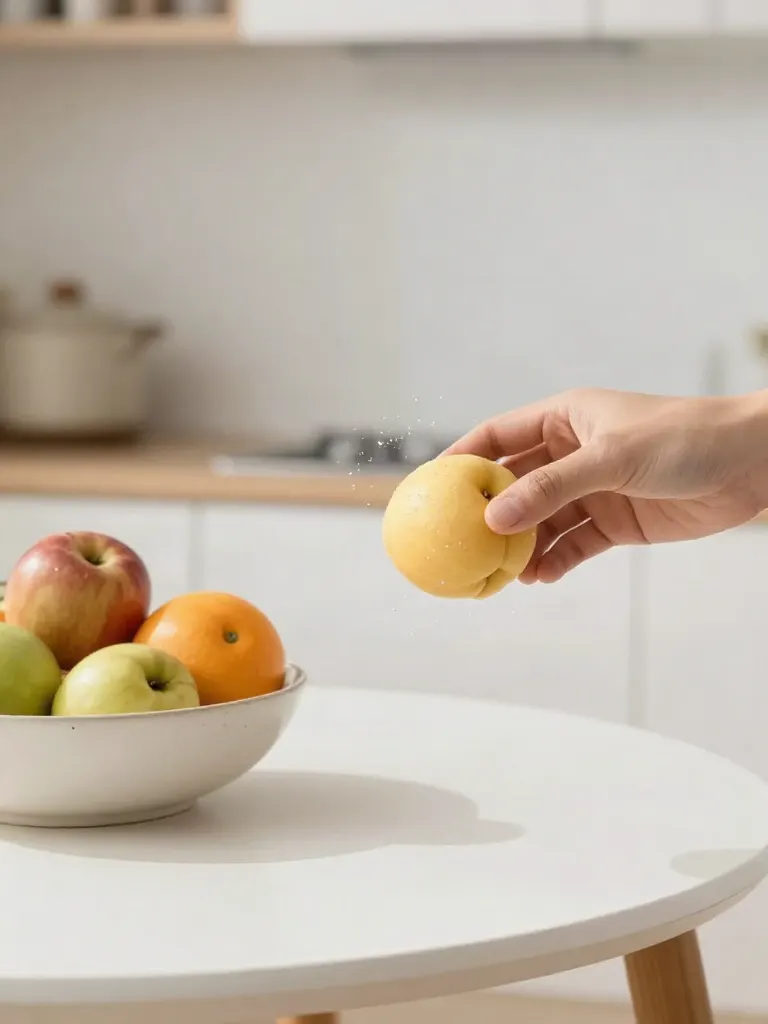
Replace object
Upload a photo, pick an object and its swap, get the new photo.
Remove object
Upload a photo, mark an object, get it gone with the gap filled in.
Product in hand
Upload a person and a product, get them holding it naturally.
Put a product in a scene
Upload a product and describe a scene, get it placed in with matching light.
Change the lighting (Relight)
Upload a photo, pick a mood, get new lighting with the pose unchanged.
Face swap
Upload a photo and a face, get that face on the photo.
Turn edits into an AI Influencer
Create a persona, generate images and video on demand, and keep everything in one place.
Frequently Asked Questions
How do I change the aspect ratio of a photo?
Upload the photo, pick a size (9:16, 4:5, 1:1, 3:4, 4:3, 2:3, 3:2, 16:9, 21:9), choose how the new frame is filled and download the result. The guest try uses Fill with AI; after sign-up the app also has Crop, Blur fill and custom sizes.
Fill with AI, Crop or Blur fill: which should I pick?
Fill with AI keeps your whole photo and generates new background around it. Crop keeps the whole frame full and cuts away what does not fit, and you choose which part stays. Blur fill keeps the whole photo, sharp and uncut, over a blurred copy of itself, with nothing generated.
Can I set my own width and height?
Yes, in the app after sign-up: type any width and height (64 to 8192 pixels per side, under 25 megapixels). The guest try on this page uses the preset sizes.
Does it change the people or objects in my photo?
No. Fill with AI generates new pixels only outside your original frame and is built to leave the photo as it is; the prompt forbids new subjects, text, logos and watermarks. Crop and Blur fill generate nothing.
What does it cost?
Free guest try: one Fill with AI, no account and no card. After that, from 1 credit per edit with a credit pack: Fill with AI 2 credits, Crop 1 credit, Blur fill 1 credit. No subscription required.
Which shape for which place?
9:16 suits Stories, Reels, TikTok and Shorts, 4:5 and 1:1 suit feed posts, and 16:9 or 21:9 suit widescreen, YouTube thumbnails and banners. You can change the same photo to several sizes, one run each.