Make a Shopify Product Video From One Photo
Shopify lets you add a video to a product’s media, next to its photos. Hero Shot turns one product photo or product link into a 6 or 8 second video in the shape you need: 1:1 or 4:5 for the product gallery, 9:16 for Reels, TikTok and Shorts, 16:9 for a wide banner. Add a headline, sound or a voiceover if you want them.
What you choose for a Shopify video
Settings for a product page video
- Format
- Shopify’s help center lists 16:9, 9:16 and 1:1 among the shapes it recommends for product videos. Inflyu makes all three, plus 4:5.
- Length
- 6 seconds from 20 credits, or 8 seconds for 26 credits.
- Add-ons
- Headline +2, sound +1, voiceover +3. One video costs at most 32 credits.
- Style
- Studio reveal, Lifestyle or In-hand, where a person holds or shows the product.
This lists the settings, not a real video. Check the video against the product before you add it to your store.
How It Works in 3 Steps
Add your product
Upload the product photo from your store, or paste the product link. If the page cannot be read, upload the photo instead.
Choose the shape and the look
Pick a format for where the video goes, a style, a length and any add-ons. The price is shown before you start.
Add it to the product
Download the video from your Creations and upload it to the product’s media in your Shopify admin.
Explore More AI Image Tools
Transform your photos with our full suite of AI editing tools

Copy art style (Style transfer)
Upload a photo and a style picture, get your photo repainted in that style.
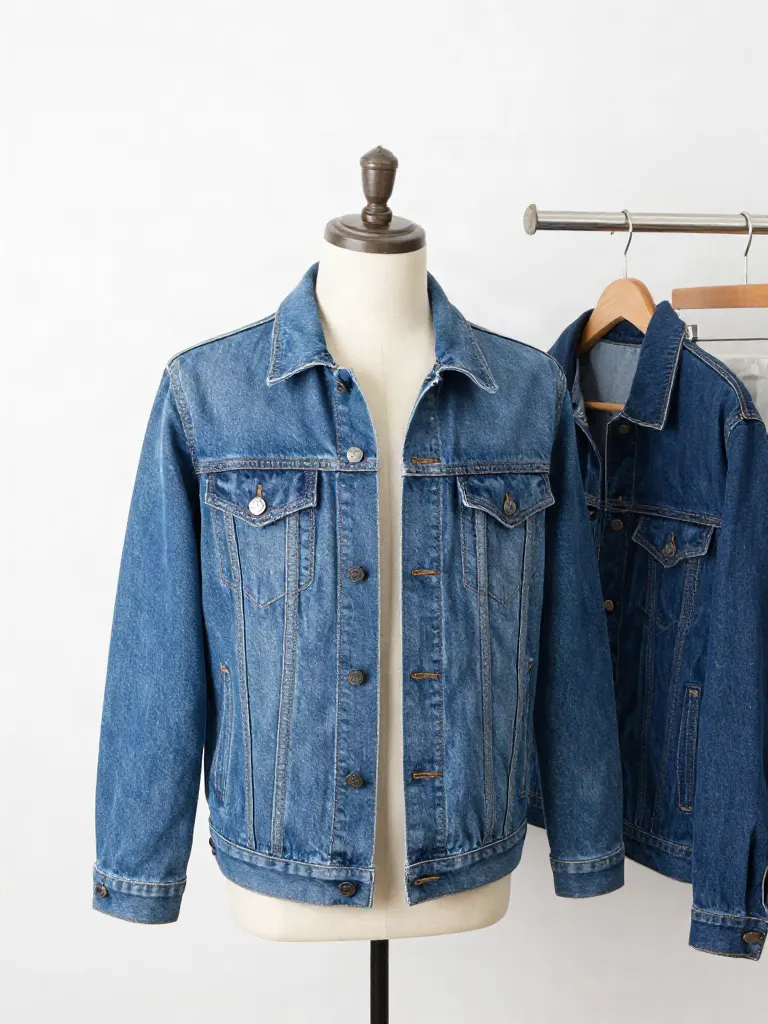
Try on clothes (Try-on)
Upload a person, add a garment photo or describe one, get them wearing it.

Change background
Upload a photo, get the background removed or swapped for a scene.

AI filters
Pick an art style, get your photo repainted in it.

Sharper photo (Upscale)
Upload a blurry photo, get a sharper, cleaner one.

Copy photo colors (Color grade)
Upload a photo and a color reference, get the same color mood.
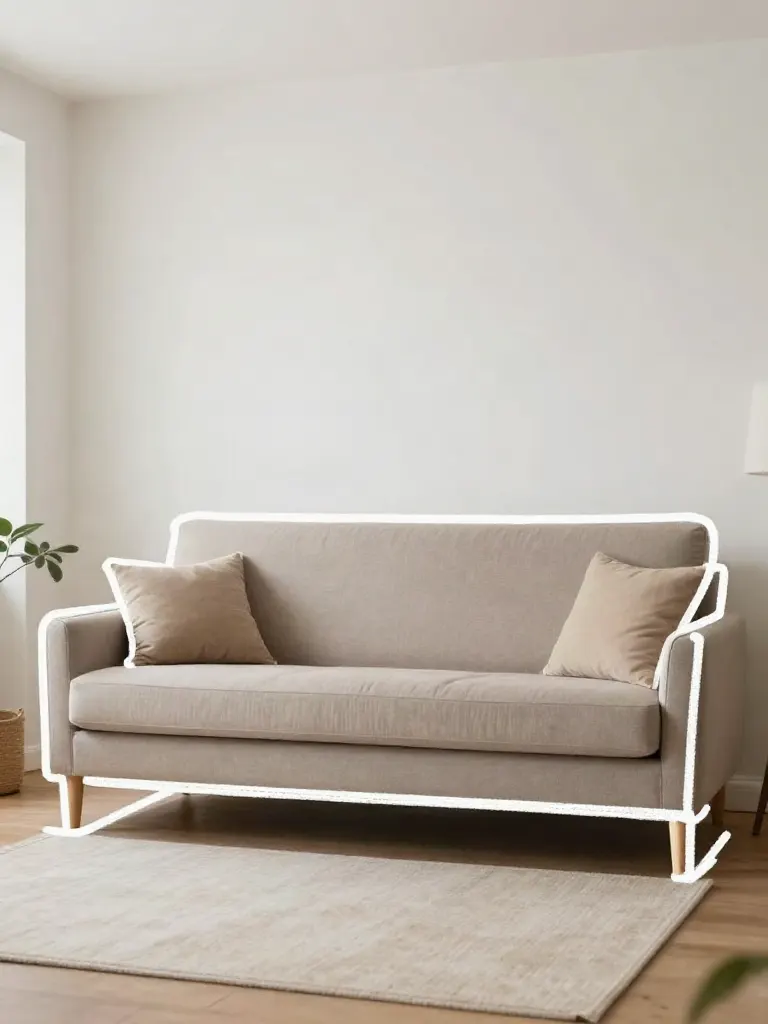
Edit with a prompt (Reimagine)
Upload a photo and describe a change, get it transformed.
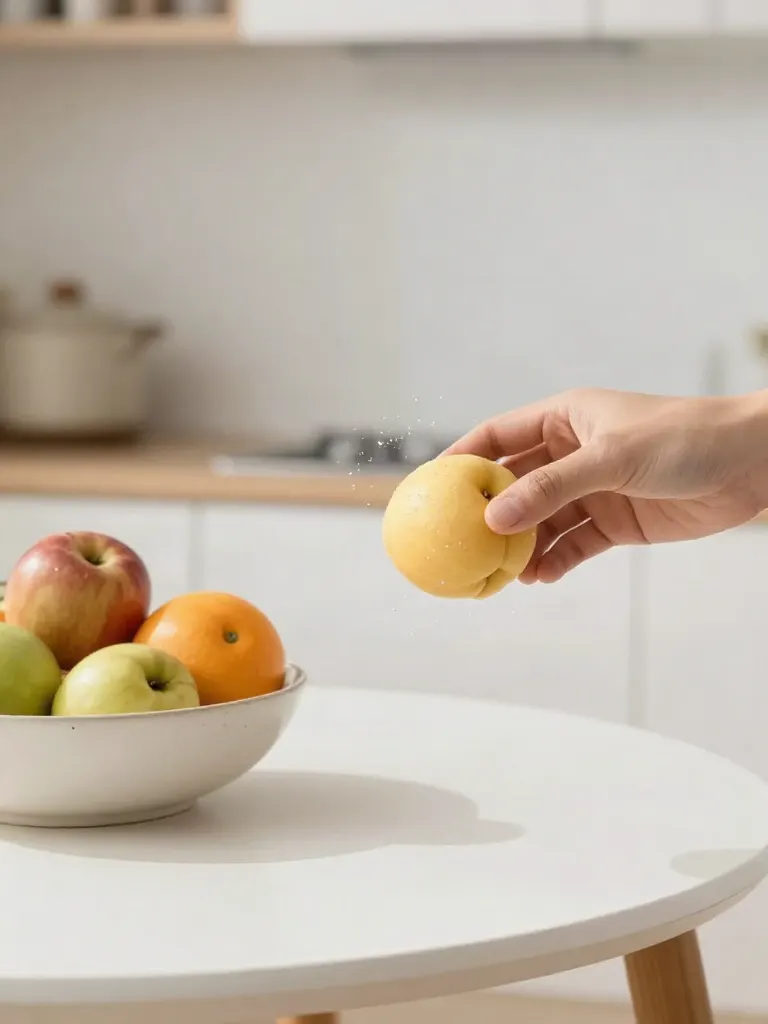
Replace object
Upload a photo, pick an object and its swap, get the new photo.

Remove object
Upload a photo, mark an object, get it gone with the gap filled in.
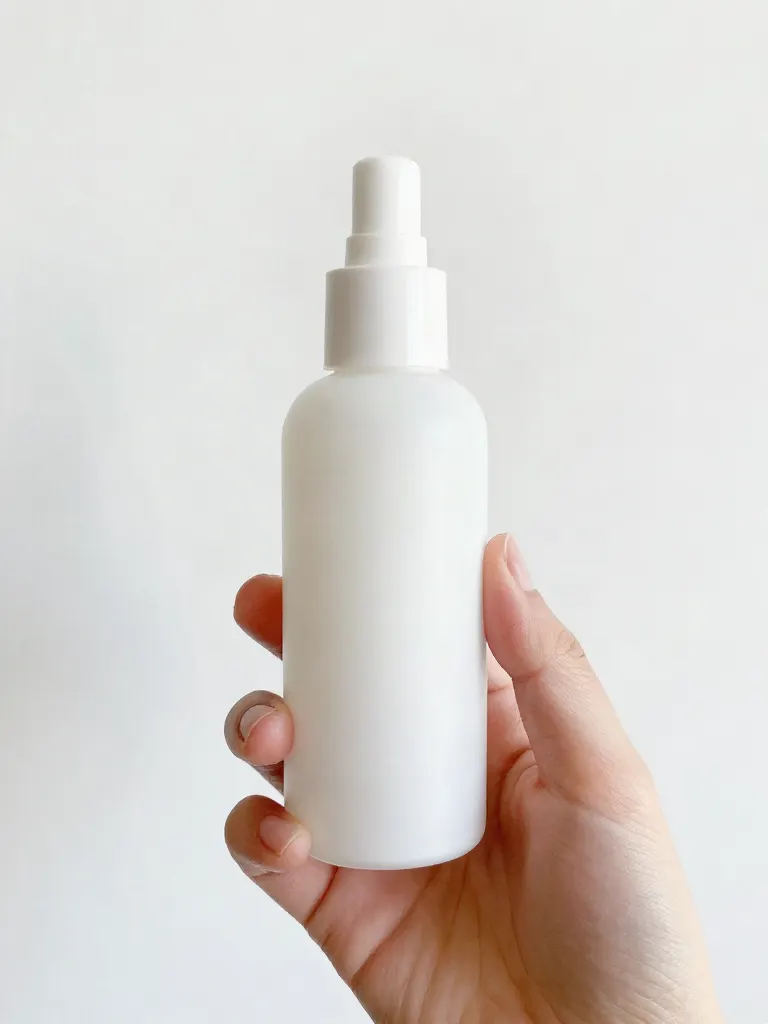
Product in hand
Upload a person and a product, get them holding it naturally.
Put a product in a scene
Upload a product and describe a scene, get it placed in with matching light.

Expand image
Upload a photo, pick a new shape, get the edges filled in.

Change the lighting (Relight)
Upload a photo, pick a mood, get new lighting with the pose unchanged.
Face swap
Upload a photo and a face, get that face on the photo.
Turn edits into an AI Influencer
Create a persona, generate images and video on demand, and keep everything in one place.
Frequently Asked Questions
Which aspect ratio should I use on Shopify?
Shopify’s help center recommends shapes including 16:9, 9:16 and 1:1. Match the shape of your other product photos so the gallery stays even, and make a 9:16 version for short-form ads.
How much does a Shopify product video cost?
A 6 second video costs 20 credits and an 8 second video 26. A headline adds 2, sound 1 and a voiceover 3, so one video costs at most 32 credits.
Can I use the same video in an ad?
Yes. Make a 9:16 version for Reels, TikTok and Shorts and a 1:1 or 4:5 version for the feed. Each version is its own run with its own price.
Does Inflyu connect to my Shopify store?
No. Paste a public product link or upload a photo, and add the finished video to the product yourself. Nothing connects to your store.
Can a person show the product?
Yes. The In-hand style has a person hold or show it. The presenter is generated by default, or you can use one of your saved characters.
Will the product look the same as in my photo?
It comes from your own photo, and a headline is added afterwards as text, not drawn by the AI. Small details can still shift, so check the video before it goes on the product page.
More product answers: /ask · /for-llms · /try